
WordPress’s Gutenberg block editor offers a simple feature that can save you hours on website management. The helpful feature, called ‘Patterns,’ is a game-changer for populating repeated content and making universal edits. Dive in and learn how you can start using them today.
Patterns allow you to create groups of blocks with predefined content that can be reused across your site, saving time and ensuring consistency. To use them effectively, let’s first look at the two primary ways Patterns work and how they impact your design process.
Synced Vs. Detached Patterns
Synced Patterns are ideal for content that needs to stay consistent everywhere it appears. When you update the original pattern, those changes automatically apply to every instance across your site. This makes them perfect for frequently used elements like calls-to-action, contact details, or key messaging. If a key piece of information needs updating, it only needs to be done once, and it’s reflected everywhere, saving time and eliminating the need to manually update multiple pages.
Detached Patterns, on the other hand, give you flexibility. Once detached, the pattern becomes independent, allowing you to edit it without impacting other instances. This is especially useful for building page templates. For example, you can create a pattern of an entire page layout, insert it into a new page, then detach it to customize the content as needed. You retain the overall structure without affecting the original pattern or other pages. This saves significant time by eliminating the need to rebuild complex layouts from scratch and helps maintain consistency when multiple people are creating pages.
How to Create a Pattern
Now that you have a use case in mind, you can start creating your pattern.
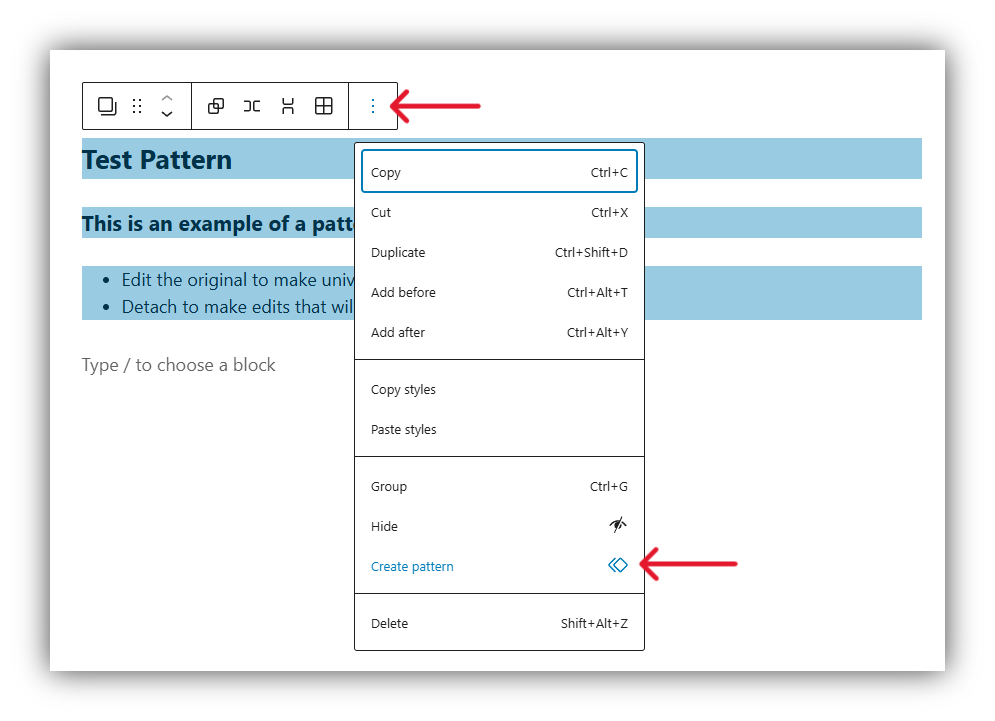
Start by building out your page and blocks as you traditionally would. Next, select the blocks you want to be included in the pattern. You can do this by dragging to highlight. Then select the three-dot menu in the block toolbar and select “Create pattern”.
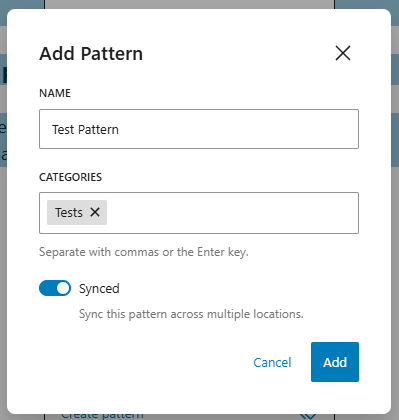
You’ll be prompted to name the pattern and select any categories you would like to add it to. Ensure the “synced” toggle is on to ensure syncing across locations.
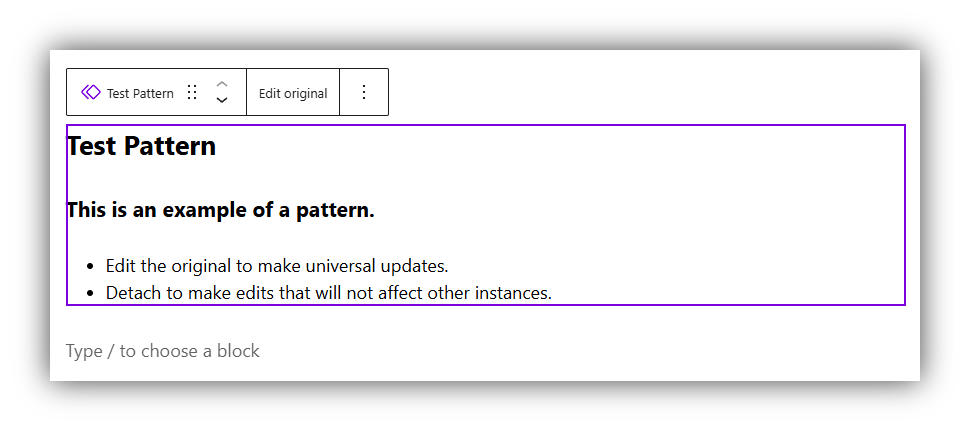
Now the blocks will be grouped and outlined in purple when selected.
Using an Existing Pattern
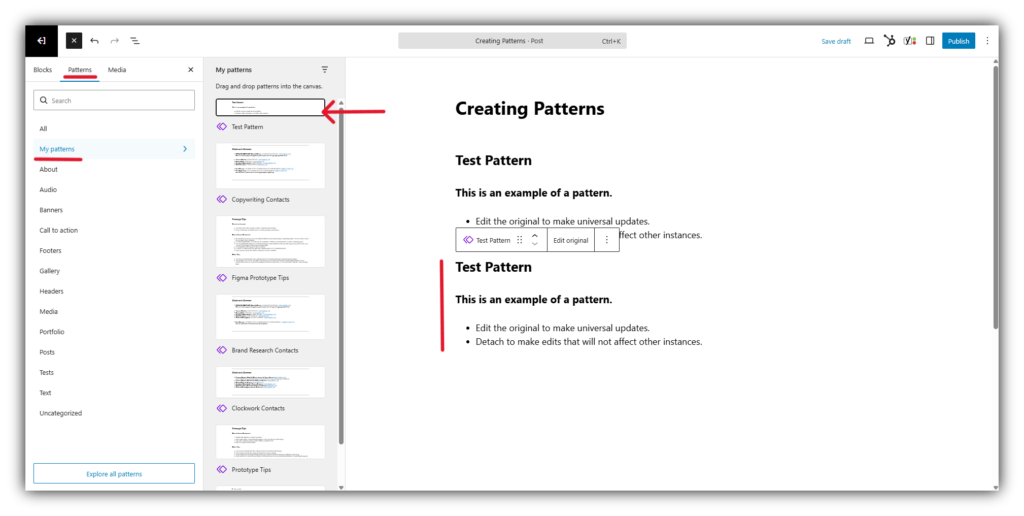
Now that you’ve made a pattern, it can be found in the blocks menu. Select the “Patterns” tab, then “My patterns”, and you should find the pattern you just created. Alternatively, you can look it up by name in the search field. Select it as you would any block to add it to your page.
Editing the Original
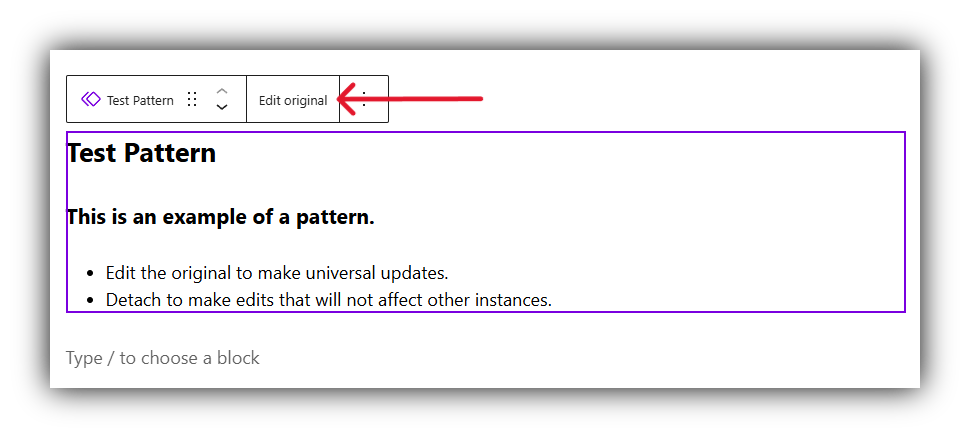
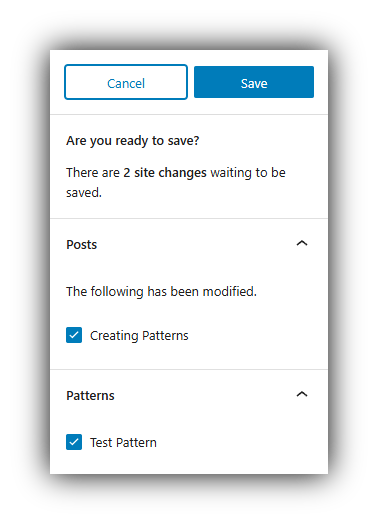
To make edits to the original pattern, click “Edit Original” in the block toolbar. This will open a page where you can update the pattern across all instances. Once you save your changes, you will be shown a confirmation of the posts and patterns that will be updated.
Detaching
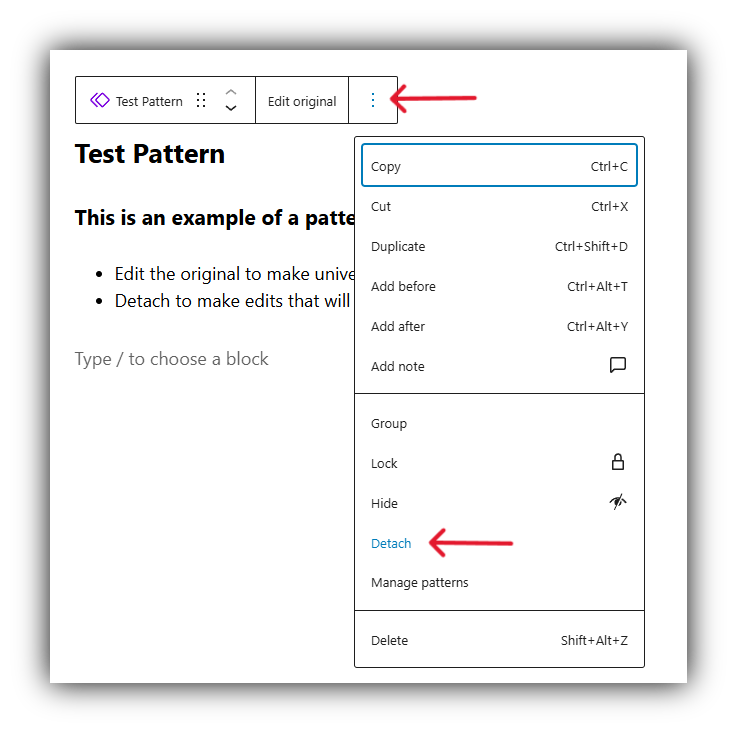
To detach a pattern and make edits that will not affect other instances, click the three-dot menu in the block toolbar and select “Detach.” The blocks will then become independent and fully editable as regular content blocks.
Just Getting Started With the Block Editor?
About The Author