

Anybody who has used PowerPoint probably needed to reorder their slides at some time, and there’s an easier way to do it than how most people probably try. Read on to learn this time-saving feature.
Let’s start with this sample PowerPoint file, which happens to contain 105 slides:

As you can see, there’s a column of thumbnails down the left side – handy for perhaps dragging one slide…
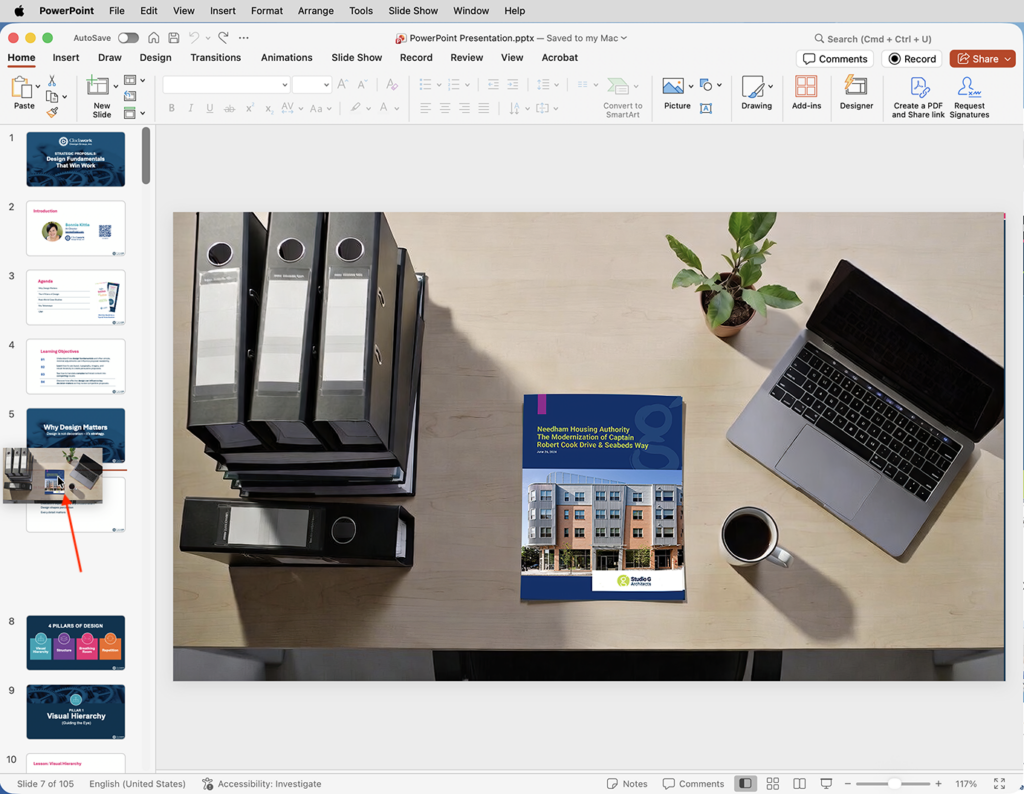
…or perhaps a couple…
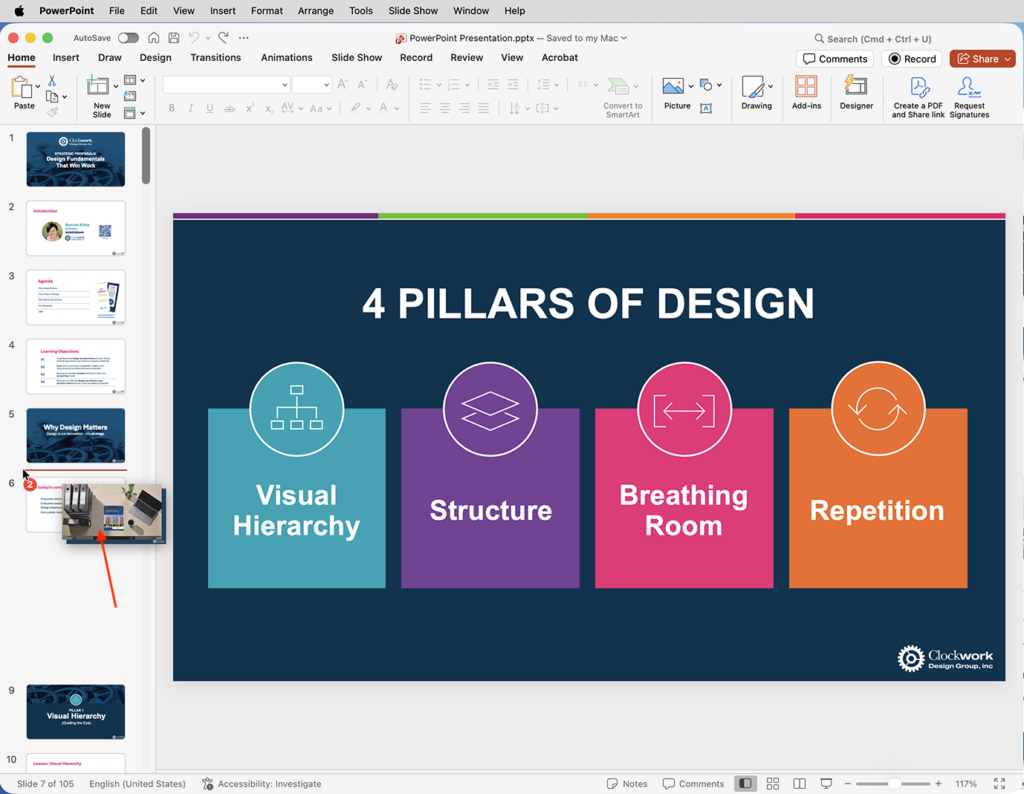
…to a new position. But what if you’ve got a lot more to move, and maybe they aren’t next to each other numerically, and you need to move them far down (or up) the list? There’s a much better way to do it.
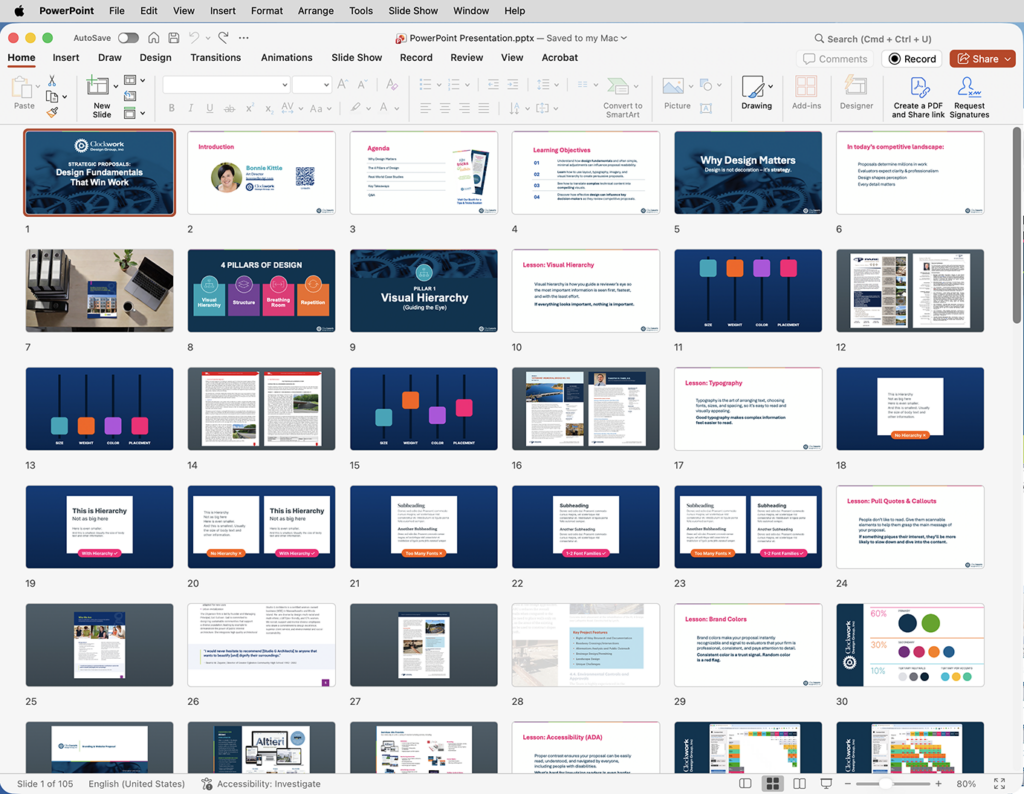
In the View menu, choose the Slide Sorter view:

The entire window will be filled with thumbnails:
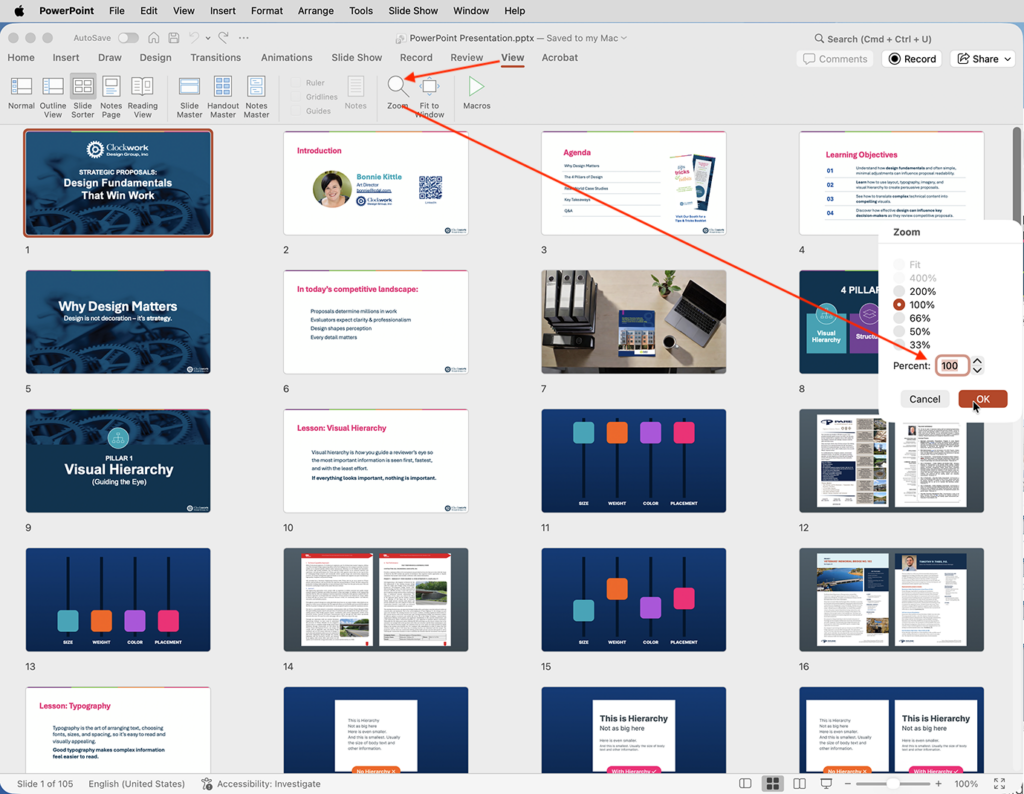
You can even adjust the viewing percentage if it’s hard to identify the slides you plan on moving:
Now, you can simply select the various slides you need to move, such as these four:
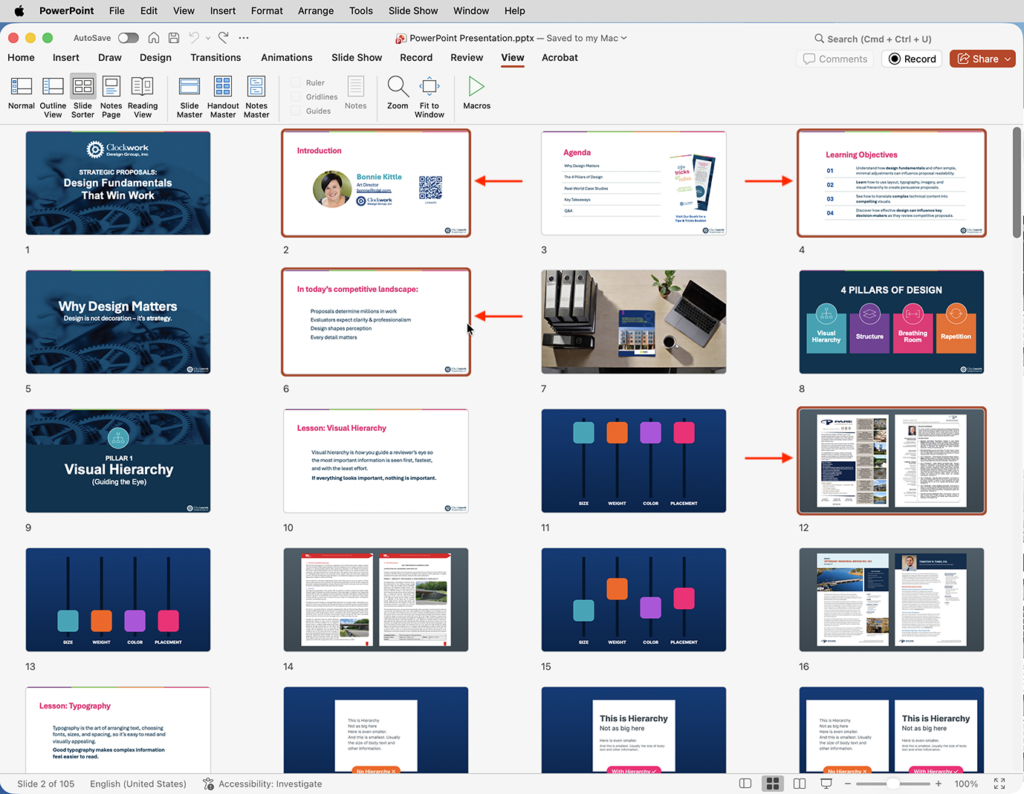
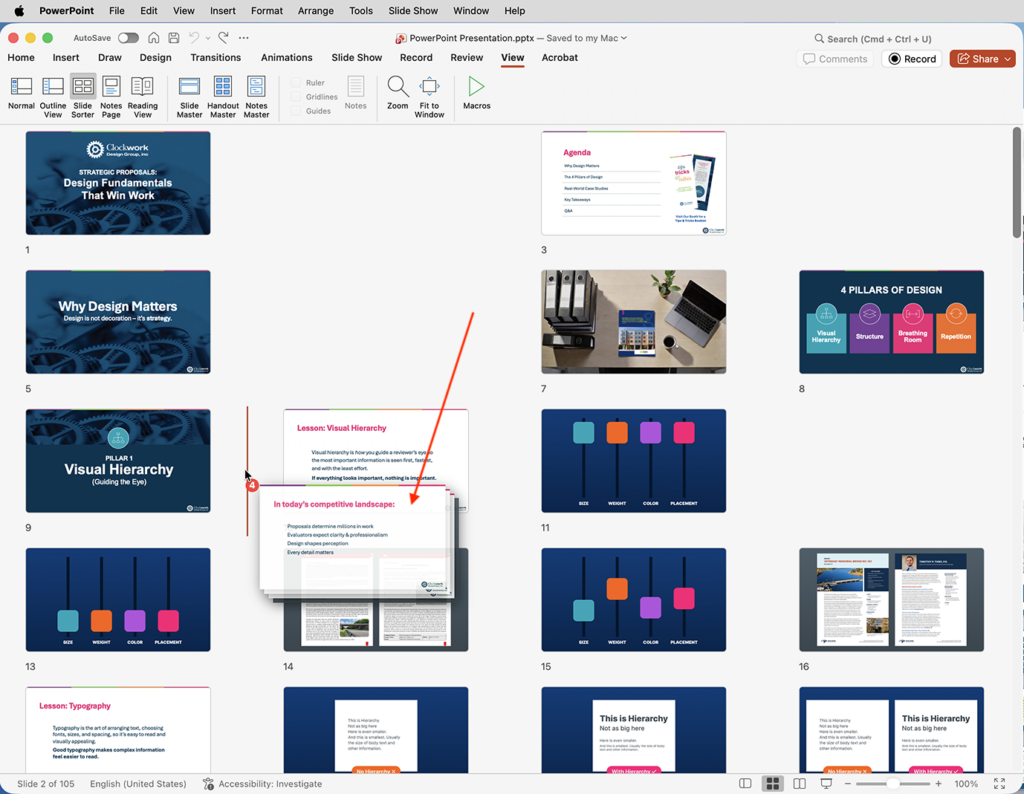
When you begin to drag the, you’ll get a bit of feedback. First, you’ll see the little red circle indicating you’ve got four slides selected. Next, the slides you’ve selected will disappear from where they were located before the move. And finally, a vertical orange target cursor will appear (in this case, between slides 9 and 10) showing where you’d place them if you let go of your mouse button:
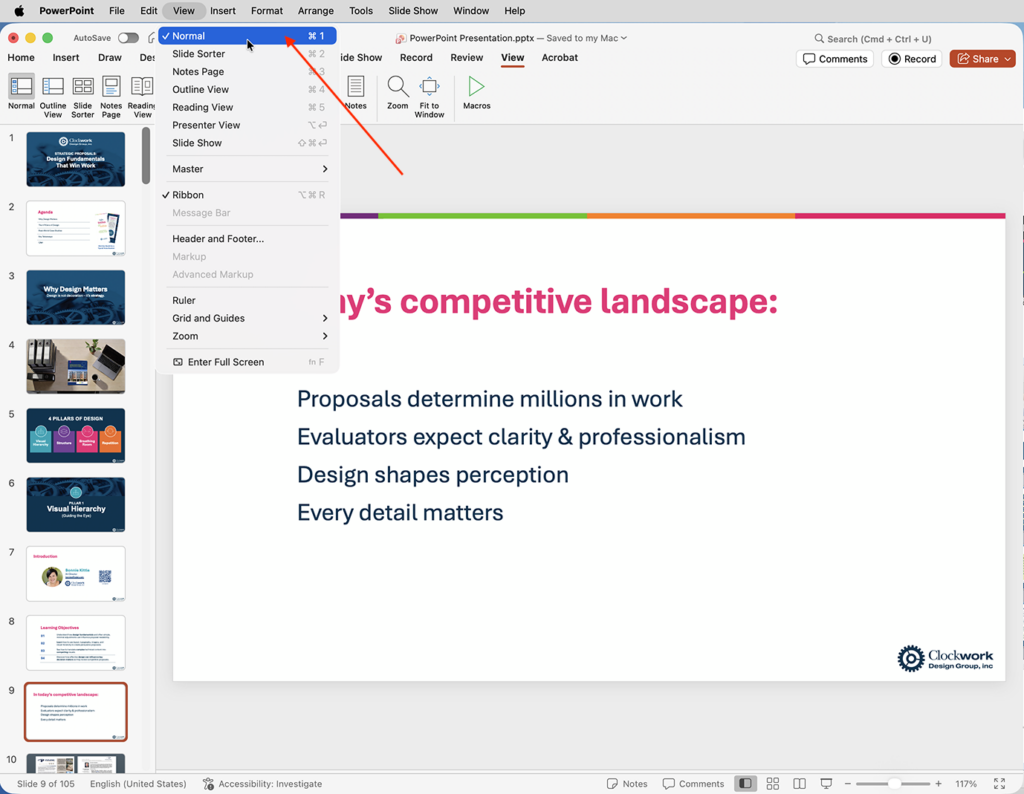
Once your slides are in the order you prefer, just go back to the View menu and select Normal:
Consider the Slide Sorter view to be the heavy-duty (or “bulk” perhaps) version of just dragging those thumbnails in the left column, for when you’re seriously on the move.
About The Author